

Picture this:
You're about to learn everything about "7 Must-Follow Graphic Design Do's and Don'ts for Stellar Sticker Artwork" — without the jargon, without the fluff, and with at least one dad joke that'll make you groan. Grab your coffee. Let's go.
Key Takeaways
7 min read
- 1What you need to know before printing
- 2Common mistakes to avoid
- 3How to get the best results
Stickers are a brilliant way to promote your brand and engage your audience — but only if your design hits the mark. Follow these 7 essential do's and don'ts to create <a href="https://www.printulu.co.za/product/stickers?utm_source=blog&utm_medium=content&utm_campaign=internal" class="internal-link text-[#007756] hover:text-[#005d42] underline font-medium">sticker</a> artwork that's both eye-catching and <a href="/blog/print-ready-file-guide" class="internal-link text-[#007756] hover:text-[#005d42] underline font-medium">print-ready</a>. You'll avoid costly mistakes and ensure your stickers look professional every time.
The Top 7 Graphic Design Do's & Don'ts for stickers:#
DO #1: Use the minimum font size requirement#
Readability is everything in sticker design. You need a font size that's easily readable from a distance. At Printulu, our minimum font size is 8 points because we use UV ink printers. Stick to this requirement — your message needs to be legible.
Here's a pro tip: use bold, heavier fonts instead of light ones. The printer's "spray" can cause lighter fonts to fade away almost completely. Trust me on this — bold is definitely better.
DO #2: Use 300DPI images at the correct size#
High-quality images are non-negotiable for professional-looking stickers. Pixelated images will make your design look amateur and unappealing. Printulu requires 300 dpi images for all print-ready artworks.
<AcademyProTip> Set your image up at the exact size it'll be in your final artwork. If you're designing a 30cm x 30cm sticker and stretch a 20cm x 20cm image to fit, the DPI drops and you'll get pixelation. The image resolution decreases when you enlarge beyond the original size. </AcademyProTip>
You can use AI tools like Let's Enhance to enlarge your images. The video below shows you how to resize images properly in Photoshop.
In the second video, I show you where to change image size, resolution, and how to soften texture or slight pixelation. This is golden knowledge — countless designers struggle with image quality fixes. You might not always have perfect image quality, but this workaround will save you time and again.#
DO #3: Include your cutline#
A cutline shows exactly where your sticker will be cut. Include this in your design process to ensure your stickers come out looking exactly as you intended.
Cutline setup varies between printers, but the basic principle stays the same. In your colour swatch, create a new colour with these values: (C:0; M:100; Y:0; K:0) or another value that contrasts completely with your design colours. Set your colour type as a spot colour.
Now create the cutline by making an outline for your whole design on a separate layer. You can't do this in raster-based programs like Photoshop — you'll need to create separate artwork (covered in point 5).
DON'T #4: Design your artwork two-up#
Don't design two identical stickers side by side. There's no reason for this — we have programs that calculate the most efficient layout, giving you the best price. While this might seem like a cost-saving trick, it can result in uneven cuts and unprofessional-looking stickers.
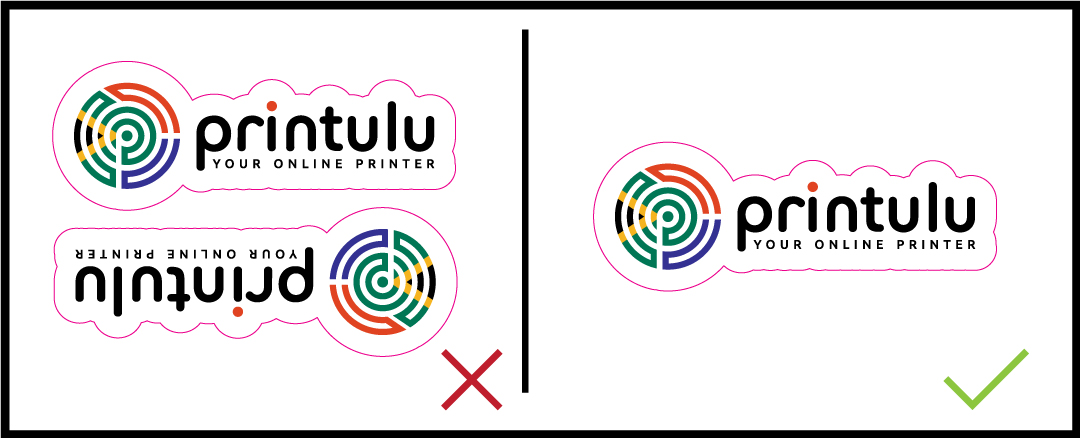
Sticker_NoTwoUp
DON'T #5: Set your cutline up in a flattened artwork#
Flattened artwork merges everything into one layer. If your cutline is in flattened artwork, it'll be difficult to edit or adjust. Keep your cutline in a separate layer for easy modifications.
For raster-based programs: You can't set up a cutline in the same artwork file. Create a separate file showing where you expect the cutline to be. Upload your artwork without a cutline, then another version with the cutline. The video below shows you how.
<AcademyQuote> Professional designers always keep their cutlines separate. It's the difference between a smooth production process and a printing nightmare. </AcademyQuote>
There's software available for this, but it's paid — design agencies need to supply print-ready artwork, so this cost falls on them. If you want to explore this, check out Cadlink's product offerings.#
DON'T #6: Use text right up to the border#
Text too close to the edge gets cut off during the cutting process. Keep your text within the safe area to ensure your complete message survives. The safe text area for stickers is 5mm all around — your text must be 5mm in from your ordered sticker size.
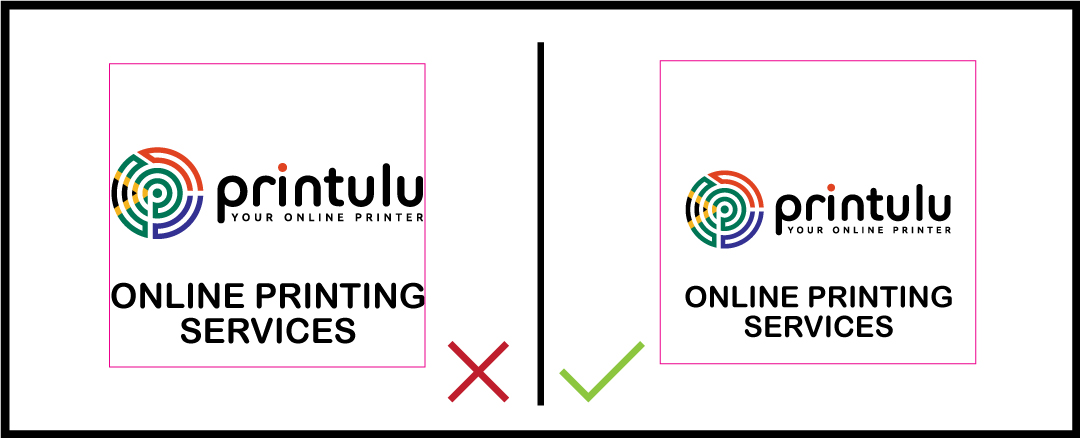
Sticker_SafeTextArea
DON'T #7: Forget to add bleed to your graphic design element#
Bleed is the extra margin added to your design edges to prevent white spaces or borders around your sticker. Add bleed to ensure your sticker looks professional and clean.
Stickers require 5mm bleed all around. Put NO text in this area — only background artwork. If you supply an image with white bleed, you risk having white edges on the final result because cutting alignment is never perfect.
Here are three main graphic design tips for designing stellar stickers:#
- Keep it simple: Your sticker should be easy to recognize and understand at a glance. Don't overcrowd your design with too many details. Focus on a few key elements to create a clear, memorable image.
- Use bold colours and high contrast: Stickers need to be eye-catching and stand out from their surroundings. Bold colours and high contrast make your sticker more visible and increase its impact.
- Consider the shape and size: Stickers come in many shapes and sizes, so choose one that fits your design. Think about the object you're sticking it on and the context where it'll be used. A small circular sticker works well on a laptop, while a larger rectangular one suits a car bumper.
<AcademyDadJoke> Why don't stickers ever get into arguments? Because they always stick to their point! </AcademyDadJoke>
Follow these tips for your next large print run, and always trust your gut instinct! You can order these products at www.printulu.co.za, or call our customer care line at (010) 593 0558 — our helpful agents will be more than happy to assist.
Related Articles:
- Stickers – Your Full Guide
- How To Apply Your Printed Custom Vinyl Stickers In 4 Easy Steps
- How To: Design and Prepare Stickers For Print (Sticky Business)
- The Complete Printing Guide
[![Printulu Subscribe <a href="https://www.printulu.co.za/product/banners?utm_source=blog&utm_medium=content&utm_campaign=internal" class="internal-link text-[#007756] hover:text-[#005d42] underline font-medium">Banner</a>](https://www.printulu.co.za/blog/wp-content/uploads/2019/05/Newsletter_Subscribe-01.png)](https://hello.printulu.co.za/popi-compliance--verify-your-email-address)
“[Demystifying Your Sticker Printing Price: What Factors Influence the Price?](https://www.printulu.co.za/blog/sticker
pprinting-price/)